Install IBO Player Pro on any device
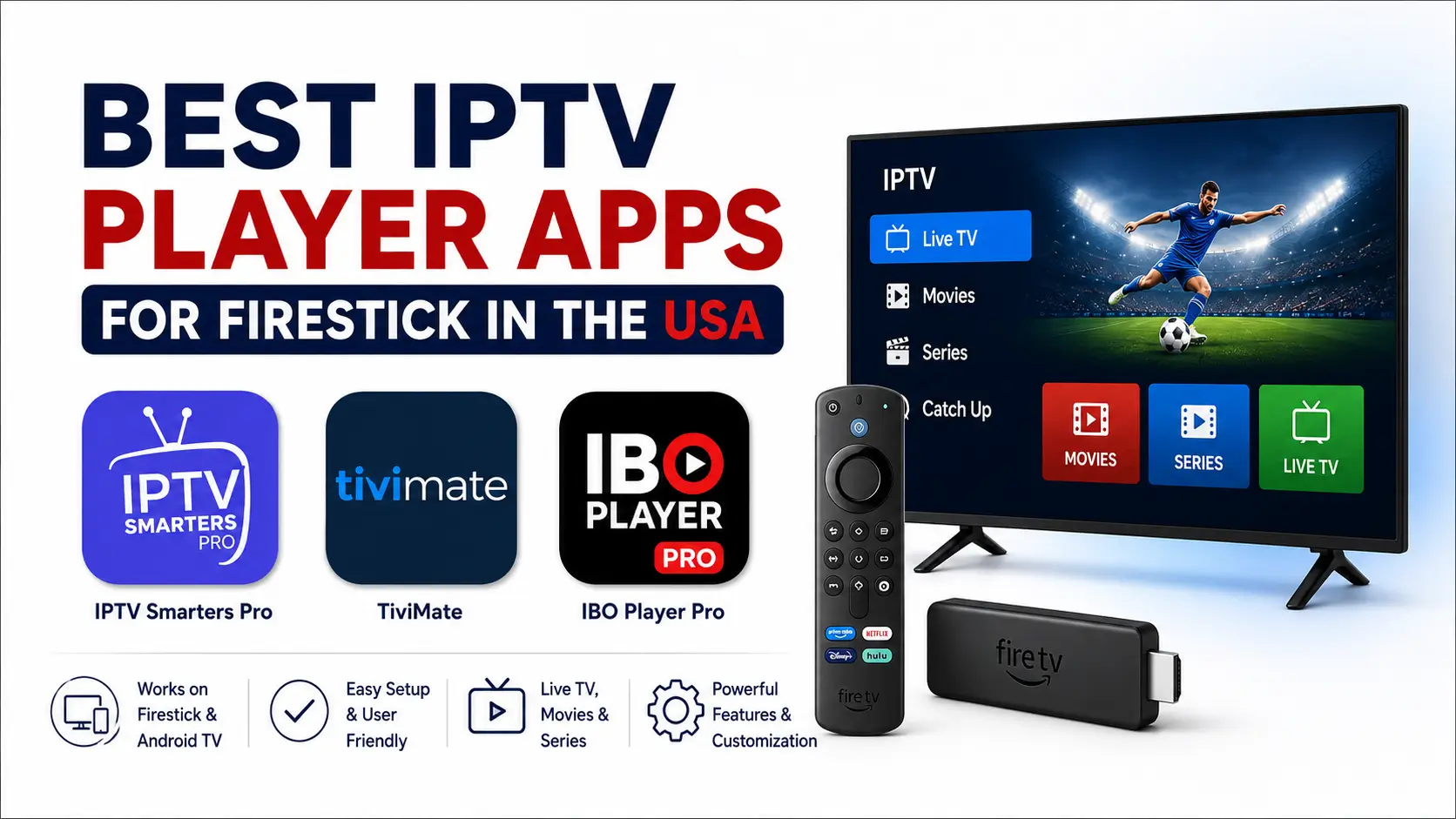
IBO Player Pro is a paid player that runs on almost any device. Install it, buy a 1-year activation from us, send us the MAC address and device key it shows, and we add your playlist for you.
IBO Player Pro · Paid About 15 min 4 steps
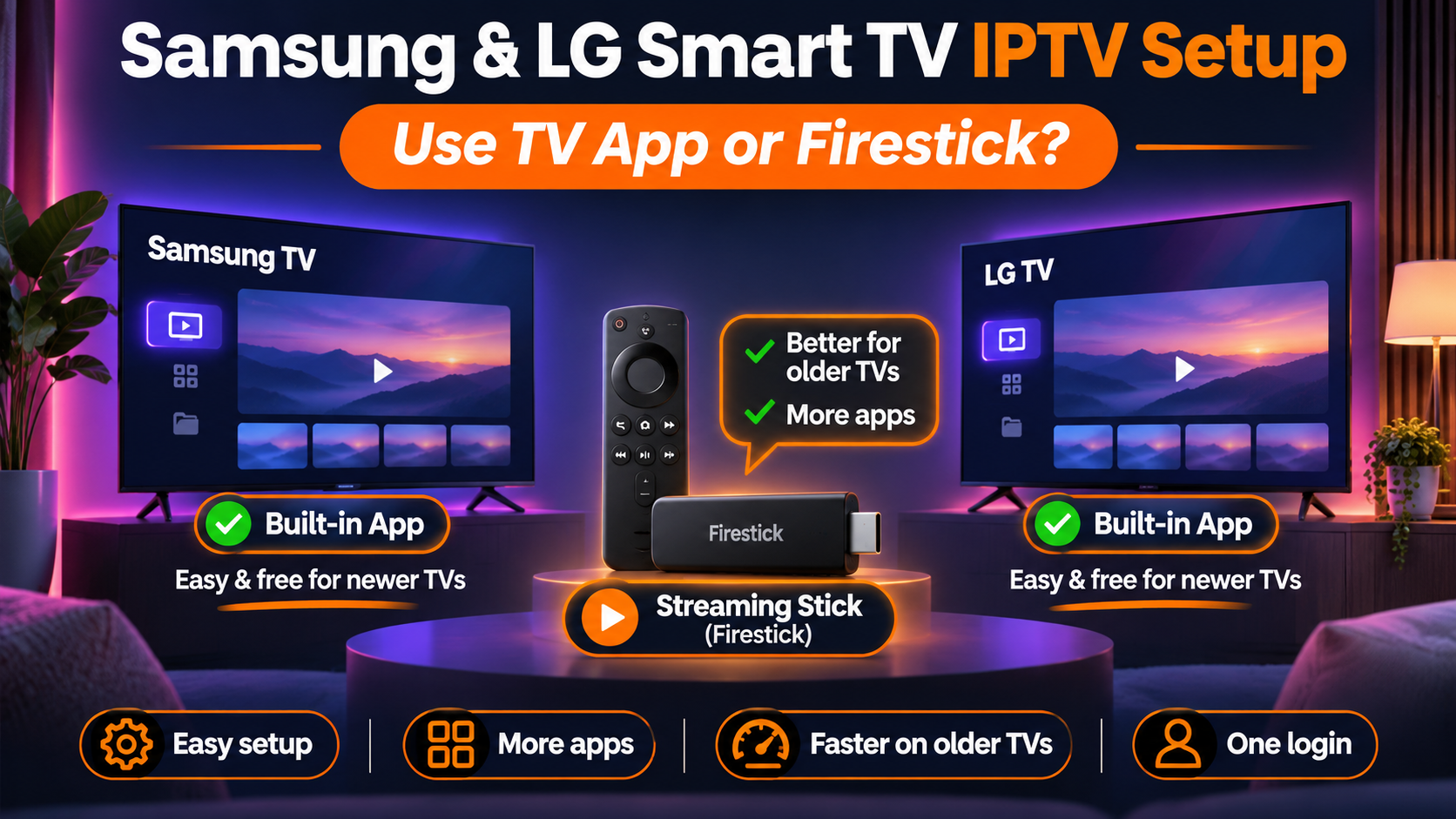
Free players work on most devices
On Fire TV and Android use OwnTV, and on smart TVs, Apple and Windows use IPTV Smarters. IBO Player Pro is for Roku, Vega OS, or if you simply prefer it.
Before you start
- An IPTV Streamline subscription
- An IBO Player Pro activation
- The device you watch on
- 1
Step 1 of 4
Install IBO Player Pro
Pick your device.
Fire TV (Fire OS)
- 1Install Downloader and allow it to install apps, as in steps 1 and 2 of the Fire TV guide.
- 2Open Downloader, type this code and select Go:
Downloader code
481220
- 3Select Install, then Open. Delete the file when Downloader asks.
Vega OS Fire TV
- 1Search the Amazon Appstore for
IBO Player Pro. - 2Select Get and install it.
- 3If it isn't listed for your device, it can't be installed on Vega OS.
Android TV, Google TV or Android box
- 1Install Downloader and allow it, as in the Android guide.
- 2Open Downloader, type this code and select Go:
Downloader code
481220
- 3Select Install, then Open.
Samsung Smart TV
- 1Press Home, open Apps and search for
IBO Player Pro. - 2Select Install, then Open.
LG Smart TVCalled ibPlayer Pro on LG
- 1Open the LG Content Store and search for
ibPlayer Pro. - 2Select Install, then Launch.
Roku
- 1Press Home and open the Streaming Store (or Channel Store).
- 2Search for
IBO Player Pro. If it isn't there, tryIBO Player Pro (US). - 3Select Add channel and confirm the Roku purchase if asked. Install only one version.
iPhone, iPad or Apple TVCalled IBO Pro Player on Apple
- 1Open the App Store and search for
IBO Pro Player. - 2Select Get, then Open.
- 1
- 2
Step 2 of 4
Find the MAC address and device key
- 1Open the app. The first screen shows a MAC address and a device key.
- 2Write both down, or take a clear photo of the screen.
Make sure the app installs and shows these two details before you pay for an activation. - 1
- 3
Step 3 of 4
Buy the activation and send your details
- 1Buy a 1-year activation on the IBO Player Pro activation page.
- 2After paying, open the link in your email (or your order in your account) and type the MAC address and device key.
- 3We activate the app and add your IPTV Streamline playlist, then email you.
On Roku and Apple devices, also tell us the exact app name you installed (for example IBO Player Pro (US)). - 1
- 4
Step 4 of 4
Restart the device
Once we email you, restart the device itself, not just the TV screen.
Fire TV, Android box, streaming stick
Unplug it for 30 seconds, then plug it back in.Samsung or LG TV
Turn the TV off, unplug it for 30 seconds, then turn it on.Roku
OpenSettings → System → Power → System restart.iPhone, iPad or Apple TV
Close the app, then restart the device (Settings → System → Restarton Apple TV).Open IBO Player Pro again. Your playlist is there.
You're ready to watch
Once everything has loaded, you'll find:
- Live TV
- Movies
- Series
- TV guide
- Favorites
If something goes wrong
Tap a problem to see what to do.
My playlist doesn't appear
- 1Check you received our email saying it's done.
- 2Check the MAC address and device key you sent match the app screen.
- 3Restart the device itself by unplugging it, then open the app again.
The app isn't in my app store
- 1It may not be available for your device model or region.
- 2Use the free player for your device instead: see all setup guides.
Channels don't load, or the picture freezes
- 1Close the app and restart the device by unplugging it for 30 seconds.
- 2Restart your router.
- 3Use a cable instead of Wi-Fi if you can.
- 4Turn off any VPN unless support asked you to use one.
Stuck on a step?
Send support a photo of your screen and we'll tell you what to do next.