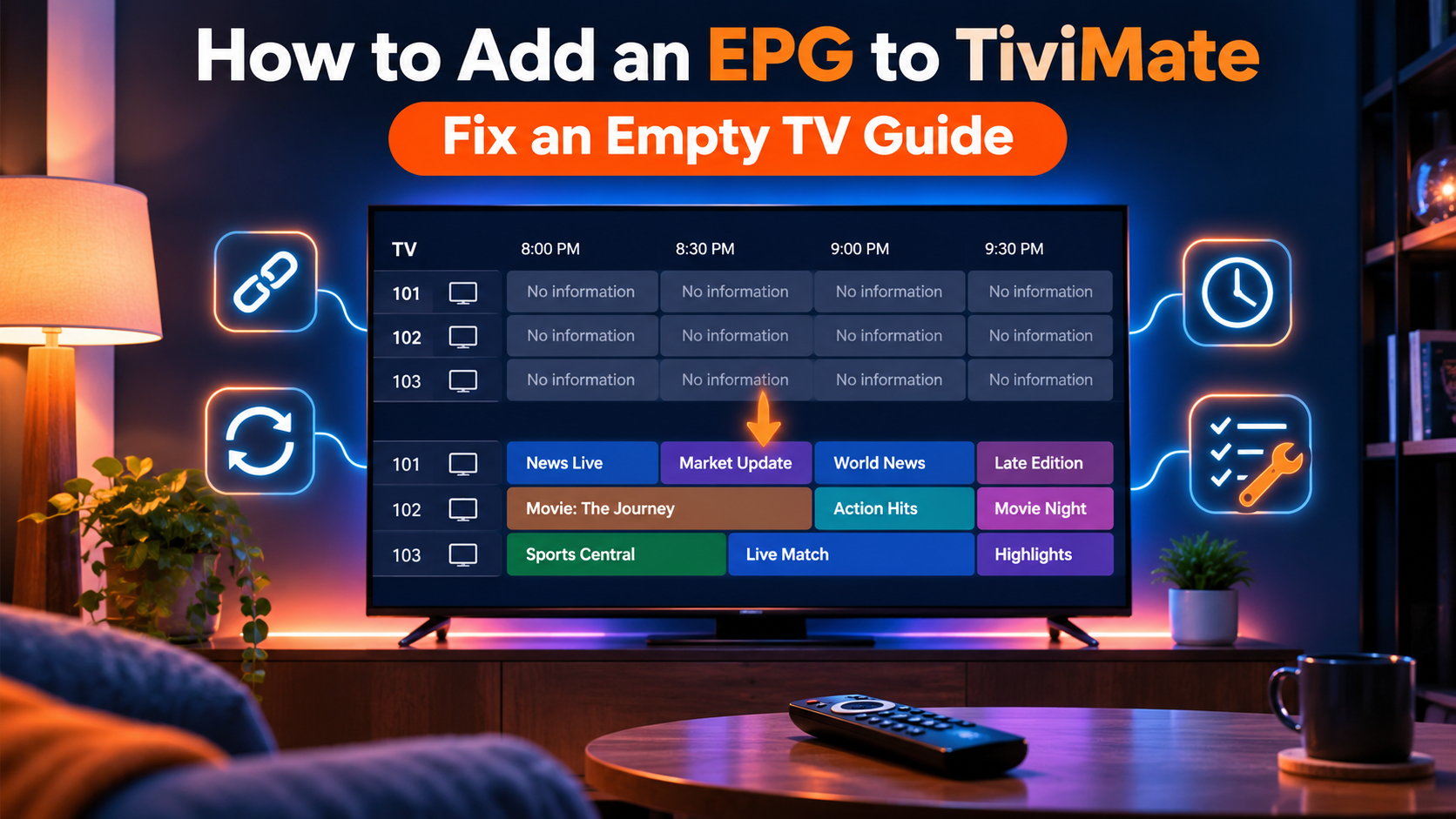
TiviMate is built around its TV guide. When the guide works, you get a grid like a cable box: every channel, what's on now, what's on next. When it doesn't, you get rows of channels with "No information" next to them, and the app loses most of what makes it good.
The guide (EPG, short for electronic program guide) is a separate download from your channel list. TiviMate loads the channels from your playlist, then loads the guide from an EPG source and matches the two. An empty guide means one of those three steps didn't happen: there's no EPG source, the download failed, or the channels didn't match.
This post covers how to add the guide the right way, then how to fix it when it's empty.
Add the guide with an Xtream Codes login (easiest)
If you added your subscription with Xtream Codes (server URL, username and password), TiviMate usually adds the guide for you. The provider's server sends the guide along with the channels.
- Open TiviMate and go to Settings.
- Open Playlists and check that your playlist is there and was added as Xtream Codes.
- Go back to Settings → EPG and look under EPG sources. You should see a source that belongs to your playlist.
- Select Update EPG (or the update button next to the source) and wait for it to finish.
The first download can take a few minutes on a Firestick, longer on older boxes. Leave the app open until it's done.
If you're still choosing how to log in, pick Xtream Codes over M3U. It saves you the rest of this section. Our post on TiviMate vs IPTV Smarters Pro explains the two login types.
Add the guide by hand with an M3U playlist
An M3U playlist is one long web address that lists your channels. Many M3U links don't include a guide, so TiviMate has nothing to show until you add one.
Most IPTV servers that give out M3U links also publish the guide at an address in this format:
http://your-server-url:port/xmltv.php?username=YOUR_USERNAME&password=YOUR_PASSWORD
Use the same server, port, username and password that are in your M3U link. If you're not sure what they are, your provider can send you the exact guide address. IPTV Streamline customers can ask support for it.
To add it:
- Go to Settings → EPG → EPG sources.
- Select Add source.
- Type or paste the guide address and select Next.
- Give it a name, save it, then select Update EPG.
Typing a long address with a TV remote is slow. The Amazon Fire TV app and the Google TV app on your phone both have a keyboard you can type with instead. Or switch the playlist to an Xtream Codes login and skip this step entirely.
Fix an empty guide
Work through these in order. Most empty guides are fixed by the first two.
1. Update the guide by hand
The guide doesn't download the moment you add a playlist on every version. Go to Settings → EPG and run Update EPG. Then give it a few minutes before you open the guide again.
2. Check the date and time on your device
A device clock that's wrong by a day makes the guide look empty, because TiviMate is looking for programs on the wrong date. On Firestick, open Settings → Preferences → Date & Time; on Android TV or Google TV, open Settings → System → Date & time. Set the time zone and turn on automatic time.
3. Fix a guide that's a few hours off
If the guide shows programs but they're an hour or more early or late, the time zones don't match. Check your device's time zone first. If that's right and the guide is still off, TiviMate has an EPG time shift setting under Settings → EPG that moves the whole guide forward or back by the number of hours you set.
4. Check that the EPG source is turned on
Under Settings → EPG → EPG sources, make sure your source is listed and switched on. If you added the same source twice, delete the duplicate. Two copies can fight over the same channels.
5. Increase how many days the guide keeps
TiviMate only stores a set number of days of guide data. If the guide works for today but goes blank tomorrow, raise the number of days kept in Settings → EPG, then update again.
6. Match channels that show "No information"
If most channels have a guide and a few don't, those few aren't matched. TiviMate pairs channels with guide entries by an ID inside the playlist; when a channel's ID is missing or different, it finds nothing. You can pick the guide for a single channel by hand from that channel's options in the guide (long-press OK on the channel). Some channels, like event or pay-per-view feeds, have no guide data anywhere, and that's normal.
7. Clear the old guide data and start again
If the guide shows old or mixed-up programs, clear the stored guide data from Settings → EPG, restart the device and update the guide again. This doesn't touch your playlist, favorites or settings.
8. Restart properly and check storage
A Firestick that's low on space can fail to save a large guide. Unplug the device from power for 30 seconds, plug it back in, and check free space under Settings → My Fire TV → About → Storage. Delete apps you don't use if it's nearly full.
Still empty?
Test whether the guide works outside TiviMate. Open the same login in another player, for example IPTV Smarters Pro or OwnTV, the free player in our Firestick setup guide. If the guide is empty there too, the problem is with the guide data on the server, not with TiviMate, and your provider needs to fix it.
If you're with IPTV Streamline, contact us with your device, the TiviMate version and a photo of the empty guide, and check the status page for any known problem first.
FAQ
Why is my TiviMate guide empty?
Usually the guide was never downloaded, the device clock is wrong, or no EPG source was added (common with M3U playlists). Run Update EPG, set your device time to automatic, and add the guide address if you use M3U.
Does TiviMate need Premium for the TV guide?
No. The free version shows the TV guide. Premium adds features like catch-up, recording and favorites management.
What is the EPG URL for TiviMate?
With an Xtream Codes login, you don't need one; TiviMate gets the guide from the server. With an M3U playlist, it's usually your server address followed by /xmltv.php?username=…&password=…, using your own login details. Your provider can confirm the exact address.
Why does the guide show the wrong times?
Your device's time zone doesn't match the guide's. Fix the time zone on the device first; if the guide is still off by whole hours, use TiviMate's EPG time shift setting.
How often does TiviMate update the guide?
It updates on a schedule you can change in Settings → EPG, and you can update it by hand any time. Updating once a day is enough for most people.