
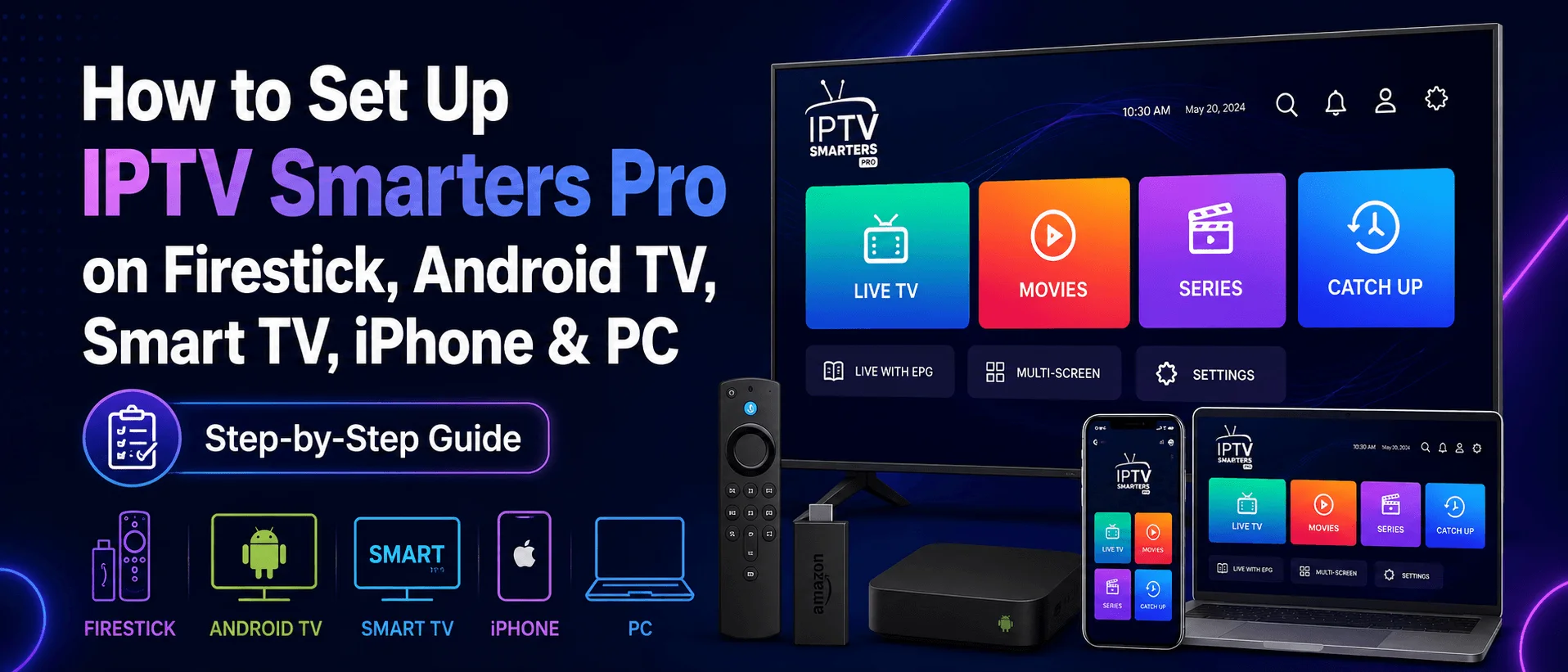
IPTV Smarters Pro is one of the most popular apps for watching live TV, movies, series, catch-up and the TV guide from an IPTV subscription.
The app has no channels of its own. You sign in with details from your provider, usually an Xtream Codes login or an M3U playlist URL.
Important: IPTV Smarters Pro is only a player. It doesn't provide channels, subscriptions, movies or series.
Supported devices
- Android phones
- Android TV boxes
- Firestick and Fire TV
- Smart TVs
- iPhone and iPad
- Apple TV
- Windows computers
- Mac computers
So you can use the same app across most of your screens.
Where to download it
The safest places are the official IPTV Smarters website and your device's app store. Availability changes by device, region and store rules. If it isn't in your store, Firestick and Android TV owners can install the APK with Downloader.
Install on Android
On Android phones, Android TV boxes and Android smart TVs, install the official APK from the IPTV Smarters website:
- Open your browser or the Downloader app.
- Go to the official IPTV Smarters download page.
- Download the Android APK.
- Allow installs from unknown sources if asked.
- Install and open IPTV Smarters Pro.
Safety tip: Avoid modified APKs. Use trusted sources to protect your device and your login details.
Install on Firestick
Step 1: Install Downloader
Search for Downloader on your Firestick and install it.
Step 2: Allow unknown apps
Turn on installs from unknown sources for Downloader. The path is usually:
Settings → My Fire TV → Developer Options → Install Unknown Apps → Downloader → ON
Step 3: Download the app
Open Downloader and enter the official APK address from IPTV Smarters, or another trusted source.
Step 4: Install
Select Install once the download finishes, then open IPTV Smarters Pro.
Full device steps are in our Firestick setup guide.
Install on a Samsung smart TV
Open Smart Hub (Apps) and search for IPTV Smarters Pro or Smarters Player. If it's available in your region, install and open it. If not, use another IPTV player that runs on Samsung. See the Samsung guide.
Install on an LG smart TV
Press Home on the remote and open the LG Content Store. Search for IPTV Smarters Pro or Smarters Player and install it if it's listed. If not, use another player for LG webOS. See the LG guide.
Install on iPhone, iPad or Apple TV
Search the App Store for Smarters Player Lite or another app that works with IPTV Smarters logins, install it and sign in with your subscription details. See the iPhone and iPad guide or the Apple TV guide.
Install on Windows or Mac
IPTV Smarters has desktop versions on its official site.
- Download the version for your computer.
- Install and open it.
- Sign in with Xtream Codes or your M3U playlist.
The best way to sign in: Xtream Codes
We recommend Xtream Codes API. It's easier to type and usually loads live TV, movies, series and the TV guide on its own. You need:
- Server URL
- Username
- Password
Set up with Xtream Codes
- Open IPTV Smarters Pro.
- Select Add User (or Add New User).
- Select Login with Xtream Codes API.
- Fill in the fields:
- Any Name: any profile name, for example IPTVSMARTERZ
- Username: your IPTV username
- Password: your IPTV password
- Server URL: the server address from your provider
- Select Add User and wait while your account loads.
- Open Live TV, pick a category, then a channel.
- The TV guide usually loads by itself. If it doesn't, select Install EPG in the app.
Set up with an M3U playlist
This works well too, but you may need a separate guide (EPG) URL.
- Open IPTV Smarters Pro.
- Select Add User, then Login with Playlist.
- Name the playlist, choose M3U URL and paste your playlist URL.
- If your provider gave you an EPG URL, add it when asked or in the EPG settings.
- Open Live TV, pick a group, then a channel.
Features
- Live TV, movies and series
- Catch-up, when your provider offers it
- TV guide (EPG)
- Multi-screen viewing
- Parental controls
- Built-in player and external player support
- Recording on some devices
- Several languages
- A simple layout
Xtream Codes or M3U?
For most people Xtream Codes is better: it's quicker to enter and loads the guide, movies, series and categories more smoothly. Use M3U if your provider only gives you a playlist link or you prefer it.
Common problems
"Invalid details"
Check your username, password and server URL. One missing character in the server URL stops the login.
Channels won't load
Restart the app and the device. If it keeps happening, check that your subscription is active.
No TV guide
Select Install EPG in the app. With M3U, ask your provider whether you need a separate EPG URL.
Not in the app store
It depends on your device and region. Use another player that works on your device.
Need your IPTVSMARTERZ login?
Use the details we emailed you after your order. They're also in your account.
Setup guides · Plans and prices · Contact support
Frequently asked questions
Does IPTV Smarters Pro include channels?
No. It's only a player. You need login details from your provider.
What's the best way to sign in?
Xtream Codes API. It usually loads live TV, movies, series and the guide automatically.
Can I use it on Firestick?
Yes. If it isn't in the Appstore, install it with Downloader.
Can I use it on a smart TV?
Yes, if it's available for your Samsung or LG model and region.
Do I need an EPG URL?
With Xtream Codes the guide often loads on its own. With M3U your provider may give you a separate EPG URL.
Is IPTV Smarters Pro free?
It depends on the device and version. Your IPTV subscription is separate from the app either way.