IPTV Smarters Pro is a player. It has no channels of its own: it signs in to your IPTV subscription and shows what the server sends. So when it stops working, the cause sits in one of three places: the login details, the app on your device, or the connection between your device and the server.
The fixes below are in the order we'd try them. The first four take a minute each and solve most of the messages we get from customers.
Before you start, check our service status page. If there's a known problem on our side, it's listed there, and none of the steps below will help until it's fixed.
1. Check the login details character by character
"Invalid username or password" and "Authorization failed" almost always mean a typo. Smarters doesn't forgive small differences:
- Usernames and passwords are case-sensitive.
Mark2024andmark2024are different logins. - A space before or after the username is invisible on a TV screen but breaks the login. Copy-paste tends to add one.
- The letter
Oand the number0, and the letterland the number1, look the same in many TV fonts.
Open the user in Smarters (the pencil or edit icon on the user list), delete each field and type it again from the email we sent you. If you use IPTV Streamline, the same details are also in your account.
2. Check the server URL format
The server URL is where most "Unable to connect" errors come from. It must include http:// (or https://) at the start, and the port number if your login has one:
- Right:
http://example-server.com:8080 - Wrong:
example-server.com:8080(nohttp://) - Wrong:
http://example-server.com:8080/(a slash at the end breaks some versions)
Type it exactly as your provider sent it. Don't add www, and don't swap http for https unless you were told to.
3. Make sure the subscription is active
An expired subscription gives the same "Authorization failed" message as a wrong password, so the app can't tell you which one it is. Check the expiry date in the email you got when you paid, or in your account. Renewing on the renew page brings the same login back once it's processed; you don't need to set up the app again.
The other cause is the screen limit. Each plan covers a set number of devices playing at the same time. If a second TV in the house is already watching on a one-screen plan, the next device gets an error or a black screen. Close the app on the other device, or move to a plan with more screens on the pricing page.
4. Restart the device properly
On a Firestick or Android TV box, turning the TV off with the remote only puts the stick to sleep. A real restart clears memory that a long-running app fills up:
- Unplug the Firestick or box from power, not from the TV.
- Wait about 30 seconds.
- Plug it back in and wait for the home screen.
- Open Smarters.
While you're at it, restart the router the same way. Home routers that have run for weeks often slow down until they're rebooted.
5. Clear the app's cache and data
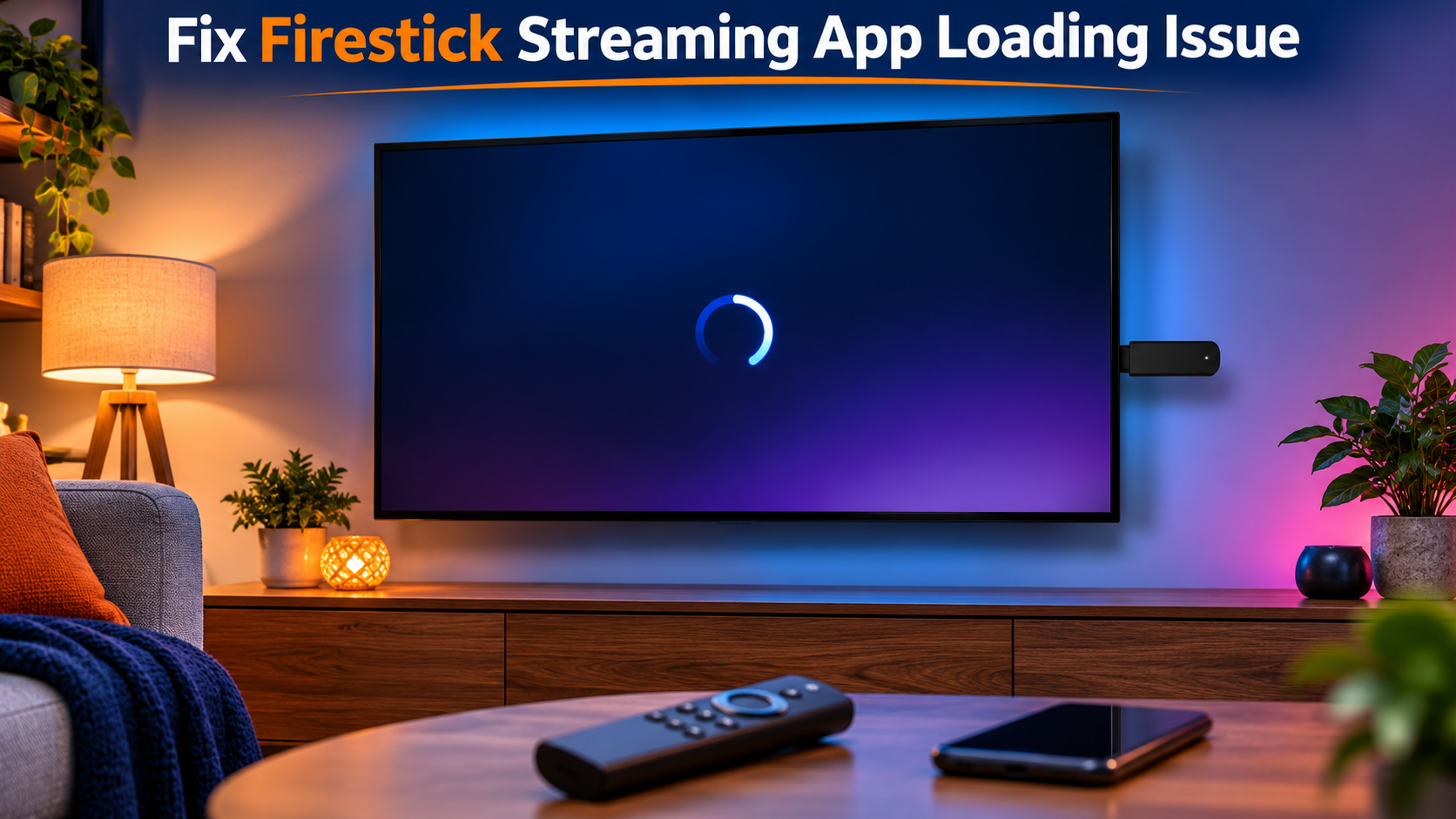
Smarters stores the channel list, the TV guide and your settings on the device. When that stored data gets corrupted, the app crashes on opening, freezes on the loading screen or shows categories with no channels in them.
On Firestick: Settings → Applications → Manage Installed Applications → IPTV Smarters Pro.
On Android TV or Google TV: Settings → Apps → See all apps → IPTV Smarters Pro.
Select Clear cache first and open the app again. If that doesn't help, go back and select Clear data. Clear data removes your saved users, so you'll need to add your login again (have your details ready).
6. Update or reinstall the app
Old versions stop working when the developer changes how the app talks to its servers. Version numbers and download sources change often, so get the current version from the official IPTV Smarters website or your device's app store, not from a random APK site. Modified APKs are a common way to have your login details stolen.
If an update doesn't fix it, uninstall Smarters completely, restart the device (step 4) and install it fresh.
7. Fix the TV guide when it's empty
If channels play but the TV guide shows "No information" or "No program found", the guide data hasn't been downloaded yet or is out of date.
- On the Smarters home screen, open the TV guide option (often called Install EPG or Refresh EPG) or go to
Settings → EPGin newer versions. - Start the download and leave the app open until it finishes. A full guide can take a few minutes.
- Check the date and time on your device. A wrong clock makes the guide show yesterday's or tomorrow's programs, or nothing at all. On Firestick:
Settings → Preferences → Date & Time, and on Android TV underSettings → System → Date & time. Set both to automatic.
A few channels with no guide at all is normal; not every channel has guide data.
8. Change the video player inside Smarters
If you hear sound but see a black screen, or the picture stutters on every channel while your internet is fine, try a different player setting. Smarters has more than one way to decode video:
- Open Settings in Smarters.
- Look for Player Selection (or Player settings in some versions).
- Switch between the built-in player options, or between hardware and software decoding, and test the same channel after each change.
Older or cheaper Android boxes often play better with the software decoder. Newer Firesticks usually do best with hardware decoding. There's no single right answer, so test.
9. Test the connection itself
Buffering every few seconds on every channel is almost always the network, not the app. Some quick checks:
- Run a speed test on the same device. Fast.com has a Firestick app, or use the browser on Android TV. For HD you want a steady 15 to 20 Mbps; for 4K, more.
- Move the router closer, or connect the Firestick with an Ethernet adapter. Fire TV sticks that sit behind the TV get weak Wi-Fi, and a cable fixes most of that.
- Other devices downloading large files on the same network (game updates, cloud backups) can take the bandwidth.
- If you use a VPN, switch it off and test. VPNs often slow streams down, and we don't ask customers to use one unless support tells you to.
Our Firestick buffering guide goes deeper into Wi-Fi settings, cache and storage.
Still not working?
If you've done all nine and the app still won't load, there are two quick tests that tell you where the problem is:
- Try the login in another player. If it works in a different app, the problem is Smarters on that device. On Firestick and Android TV, our setup guides now use the free OwnTV player, which takes the same login.
- Try Smarters on another device, such as your phone on mobile data. If it fails there too, the problem is the login or the subscription.
Then contact us and tell us which device, which app version, the exact error message and what you've already tried. A photo of the error screen saves a lot of back and forth.
Setting it up from scratch? Our guide to setting up IPTV Smarters Pro covers every device step by step.
FAQ
Why does IPTV Smarters Pro say "Authorization failed"?
The server rejected the login. That happens with a typo in the username or password, a wrong server URL, an expired subscription, or when every screen on your plan is already in use. Check them in that order.
Why does IPTV Smarters Pro keep buffering?
Buffering on every channel points to your connection: weak Wi-Fi, a slow line or a busy network. Buffering on one channel only is usually that channel's source. Restart the device and router first, then follow our buffering guide.
Why is the TV guide empty in Smarters?
The guide data hasn't been downloaded or the device clock is wrong. Refresh the EPG from the app's settings, wait for it to finish, and set your device date and time to automatic.
Does clearing data in Smarters delete my subscription?
No. It removes the login saved in the app on that device, nothing more. Your subscription stays active, and you add the same details again.
Is IPTV Smarters Pro still available?
Yes, but where you get it depends on the device. It's in the app stores on some smart TVs, and on Firestick and Android it's installed from the developer's website. On Firestick and Android TV you can also use OwnTV, the free player our setup guides use.