
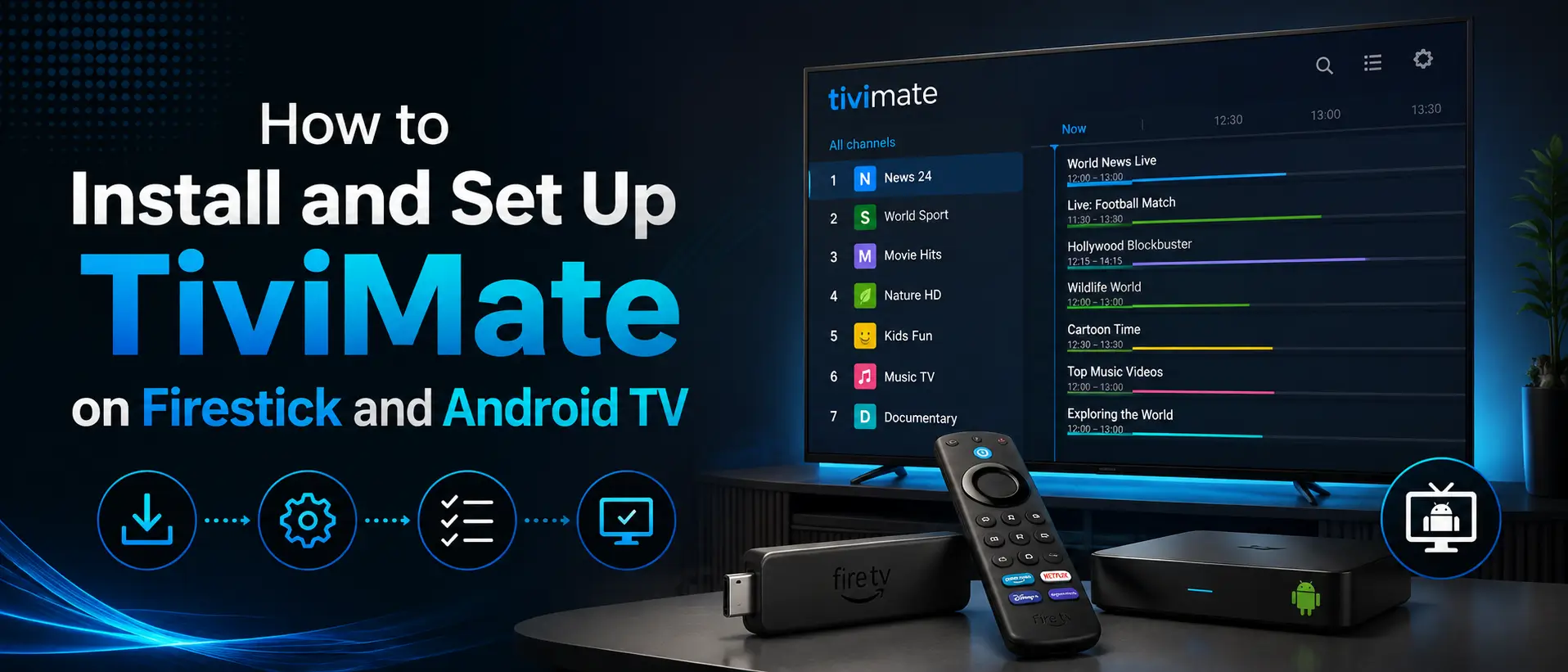
TiviMate is an IPTV player built for Firestick, Fire TV, Android TV and Google TV. It has no channels, movies, series or subscription of its own. You connect it to your IPTV service with Xtream Codes or an M3U URL.
On Android TV and Google TV you can usually install it from Google Play. On a regular Firestick or Fire TV you install it with the Downloader app.
Important: This guide is for regular Android-based Fire OS devices. A Vega OS Fire TV Stick can't install Android APKs. If yours runs Vega OS, use the Vega OS Fire TV Stick guide.
What is TiviMate?
TiviMate is made for big screens and remote controls. It gives you a clean TV guide, favorites, playlist organization, search, parental controls, recording and catch-up (when your provider supports it).
It's a player only. It isn't an IPTV provider and has no connection to IPTVSMARTERZ. TiviMate Premium unlocks app features; it doesn't add channels.
Before you install or update
App versions, download links and Premium options change. Don't rely on old Downloader codes, unofficial APK mirrors or modified "Premium" builds. Use the official TiviMate listing or website, or a source our support team gives you.
Before updating, write down your playlist details. If your version has backup and restore, back up your settings and favorites first.
Supported devices
- Regular Firestick and Fire TV devices running Android-based Fire OS
- Android TV boxes
- Google TV devices
- NVIDIA Shield TV
- Onn Android TV boxes
- Android smart TVs
TiviMate isn't made for touch-screen phones or tablets, and it doesn't run on Roku, Apple TV, Samsung Tizen, LG webOS or Vega OS Fire TV Sticks.
Install TiviMate on Firestick or Fire TV
For more device help, see our Firestick setup guide.
Step 1: Install Downloader
From the Fire TV home screen, open the Amazon Appstore, search for Downloader and install the official app by AFTVNews.
Step 2: Allow Downloader to install apps
In Fire TV settings, allow Downloader to install unknown apps. The wording depends on your Fire OS version; it's usually under developer options or app installation settings. Only use this for the install, and never install APKs from random sites, social media links or unverified codes.
Step 3: Open Downloader
Launch Downloader and select the URL field.
Step 4: Use a current, trusted source
Enter the current official TiviMate download address. Old addresses and codes stop working, so check the source first.
Safety warning: Don't install cracked, modified or "Premium unlocked" versions. They can carry unwanted software, steal logins or break after an update.
Step 5: Install
- Wait for the APK to download.
- Select Install on the Fire TV install screen.
- Wait for it to finish, then select Open.
- Delete the APK in Downloader to free up space.
Install TiviMate on Android TV or Google TV
- Open the Google Play Store.
- Search for TiviMate IPTV Player.
- Check that it's the official app.
- Select Install, then open it.
If it doesn't show up in Google Play on your device, don't install a random copy. Contact us and we'll point you to a safe method. More help is in the Android TV and Google TV guide.
Add your IPTV service
IPTVSMARTERZ customers get login details that work with TiviMate. You can use Xtream Codes or M3U.
Option 1: Xtream Codes
- Open TiviMate and select Add Playlist.
- Choose Xtream Codes.
- Enter the server URL, username and password from your subscription.
- Name the playlist if asked, then save and wait for it to load.
Type the details exactly as given. An extra space or a wrong capital letter will stop the login.
Option 2: M3U playlist
- Open TiviMate and select Add Playlist.
- Choose M3U Playlist.
- Paste the full M3U URL.
- Name the playlist if asked, then save and wait for the categories to import.
What you see after loading (live TV, movies, series, guide) depends on your subscription.
Free vs Premium
You can load a playlist for free. Premium unlocks extra features. Prices and options change, so check the official TiviMate website or app for current details.
Premium usually includes:
- Multiple playlists
- Favorites management
- Backup and restore
- Recording, including recurring recordings
- Parental controls
- Picture-in-picture
- Catch-up, when the playlist supports it
- External player support
- Manual channel and group sorting
- TV guide update controls
- Layout customization
- Multiview on supported devices
What is TiviMate Companion?
TiviMate Companion is a separate app for buying Premium and managing your activated devices. It doesn't play channels. The app you watch with is TiviMate IPTV Player.
Activate TiviMate Premium
Steps vary by device and how you pay. Use the official TiviMate website, app or Companion app.
- Create or sign in to your TiviMate account.
- Buy Premium through an official method.
- Open TiviMate IPTV Player on your TV and go to Settings.
- Select Unlock Premium and sign in with the same account.
- Name and activate the device when asked.
Premium unlocks player features only. It isn't an IPTVSMARTERZ subscription and adds no channels.
Useful settings
TV guide (EPG)
The guide shows schedules when your provider includes guide data.
- Refresh the guide if listings are out of date.
- Turn on guide updates after playlist changes.
- Check the update interval.
- Make sure the right guide source is linked to your playlist.
Favorites and groups
Add the channels you watch most to Favorites. Hide groups you don't use and reorder categories so the list is easier to navigate with a remote.
Parental controls
Premium can lock playlists, groups, channels and settings behind a PIN.
Recording
Recording depends on free storage, playlist support, a stable stream and spare connections. It fails if storage fills up, the stream drops, or your plan has no free connection.
External player
You can open a stream in another video player. This helps you tell whether a problem comes from TiviMate's player or from the stream.
Common problems
"Playlist is invalid"
- Check the server URL, username and password.
- Remove spaces before or after each value.
- Make sure your subscription is active.
- Try the same details in another player.
- Contact support if they still fail.
The playlist loads but channels won't play
- Restart TiviMate and the device.
- Restart your modem and router.
- Try a channel in a different category.
- Try the external player option.
- Test on a phone hotspot to see whether your home network or internet provider is blocking access.
Don't use a VPN unless our support team asks you to test one.
Guide is missing or out of date
- Refresh the playlist and guide.
- Check that your provider includes guide data.
- Check that the right guide source is linked.
- Let the update finish before closing the app.
Slow or buffering
- Restart the Firestick or Android TV device.
- Clear TiviMate's cache (not its data, unless we ask).
- Free up storage and close background apps.
- Improve the Wi-Fi signal or use Ethernet.
- Test on a phone hotspot to separate a service problem from a home network one.
Premium won't unlock
- Use the same TiviMate account you bought Premium with.
- Check your activated devices and remove one you no longer use if you hit the limit.
- Restart the player after activating.
- Contact TiviMate support for billing or activation problems.
Is TiviMate safe and legal?
TiviMate is a media player. Whether a use is legal depends on what you connect it to, so only use services you're allowed to access. Download the original app from a trusted source and avoid clones, modified APKs, cracked Premium versions and sites selling "TiviMate channels".
Does TiviMate provide channels?
No. It organizes and plays playlists you get elsewhere.
Why use TiviMate on Firestick?
It's a strong pick if you want a remote-friendly guide, playlist sorting, favorites, search, recording, parental controls and lots of settings. Before choosing a player, check the channel list and make sure your device supports the app.
Need help?
- Firestick setup guide
- Android TV and Google TV guide
- All setup guides
- Plans and prices
- Free trial
- Contact support
Frequently asked questions
Is TiviMate free?
You can use it without Premium, but many advanced features need a paid Premium option.
Can I install TiviMate on Firestick?
Yes, on regular Android-based Firestick and Fire TV devices, using Downloader and a trusted source. Vega OS Fire TV Sticks can't run it.
Can I install TiviMate from Google Play?
Yes, on Android TV and Google TV devices where the official listing is available.
Is TiviMate Companion the player?
No. Companion handles Premium and your activated devices. TiviMate IPTV Player is the app you watch with.
Does TiviMate work with Xtream Codes or M3U?
Yes, both.
Does TiviMate include channels?
No. It's a player only. You need a separate subscription.
Does TiviMate work on Android phones?
It's made for TV devices and remotes, not touch screens.